Documentation
Get started guide plus a deep dive into architecture, hybrid RAG, security, and production readiness.
Overview
Aidexa helps you ship a support assistant that answers from your docs — FAQs, policies, product guides — using real hybrid RAG (chunk → embed → Atlas vector search → grounded generate).
- Create a workspace for your product
- Brand the assistant (name, color, tone)
- Upload knowledge and watch the live ingest pipeline
- Embed the chat widget on your site
Prefer how-it-works detail? Jump to the Deep Dive. Repo notes live under docs/ (GUIDE.md, ARCHITECTURE.md).
Try sample workspace
No signup required. Sign in with the sample secret key to open the InterviewPro Info dashboard — branding, knowledge, and live chat included.
Use this to explore the full console before you create your own workspace.
Create a workspace
- Go to Get started
- Enter your company / product name
- Save your public key and secret key
Already have keys? Sign in with your secret key to open the dashboard.
Brand your assistant
In the dashboard Branding tab, set how the widget looks and sounds:
- Bot name and welcome message
- Primary color and logo
- Widget position (bottom-right by default)
- Tone / personality (e.g. concise, friendly, formal)
Branding loads automatically when the widget opens — you do not hardcode colors in your app.
Add knowledge
Open the dashboard Knowledge tab:
- Upload a
.txt,.md, or text-based.pdf(max 5MB) — drag and drop supported - Paste FAQs, pricing, policies, or onboarding guides
Aidexa runs a live pipeline: receive → hash → chunk → embed → store → index. Chunks are embedded with OpenAI and indexed in MongoDB Atlas Vector Search. When a doc shows as embedded, it is ready for grounded answers.
Tip: start with one clear product guide. Identical content is deduped by hash so re-uploads do not waste tokens.
Embed on your site
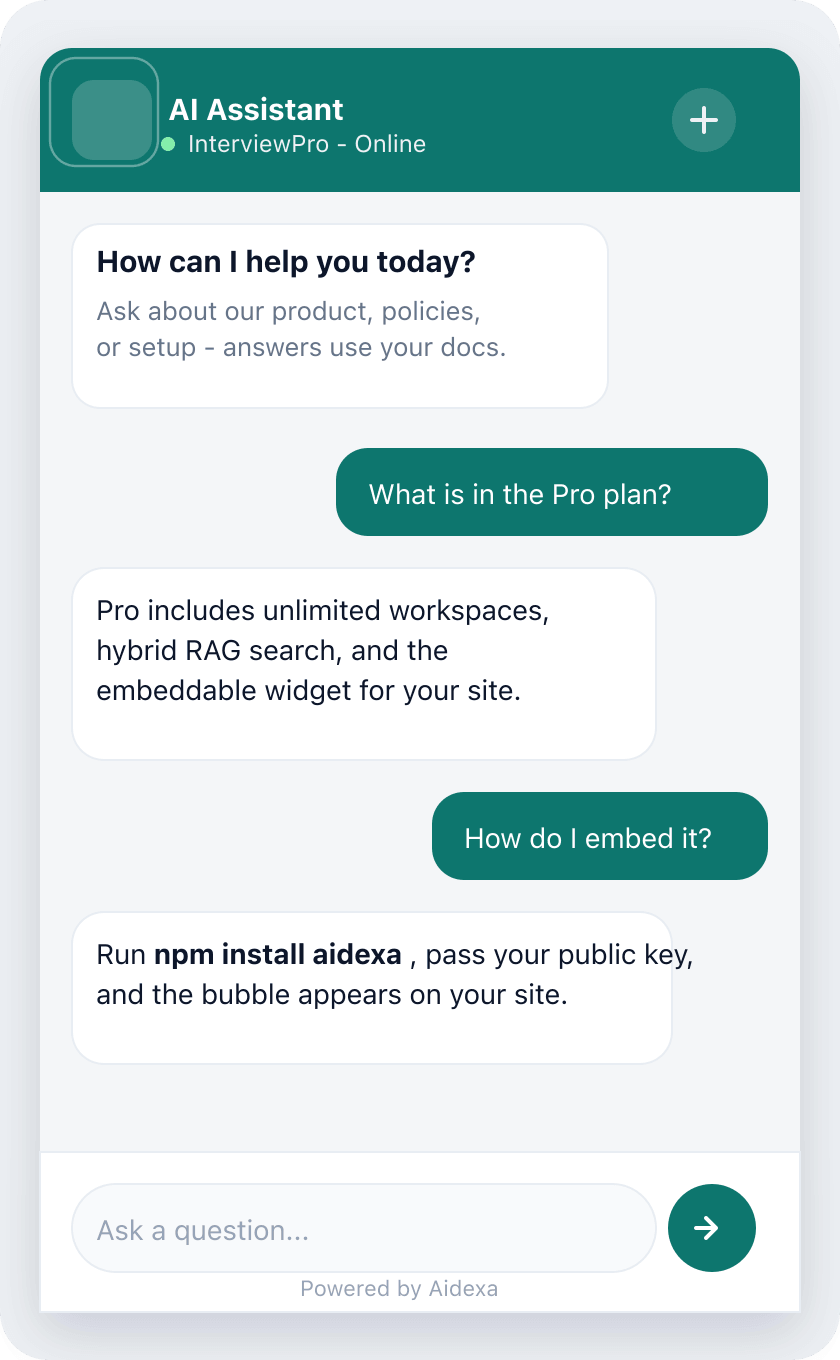
From the dashboard Embed tab, copy the snippet into your product. The widget appears as a bubble in the bottom-right.
npm install aidexa

import { AidexaChat } from 'aidexa'
import 'aidexa/styles.css'

<AidexaChat
  publicKey="pk_live_…"
  apiBase="https://aidexa-sdk-api.vercel.app/v1"
/>
Use only the public key in the browser. Keep the secret key in the dashboard (or your backend) — never ship it to customers.
How answers work
When someone asks a question, Aidexa:
- Embeds the question
- Finds nearest knowledge chunks via Atlas Vector Search (plus keyword fusion)
- Streams a grounded reply into the chat widget
If nothing relevant is found (grounded: false), the assistant avoids inventing company facts (pricing, policies, guarantees). Keep knowledge up to date so answers stay accurate.
More detail in the RAG flow and hybrid retrieval deep dive.
Keys & access
- Public key — safe for the widget and customer browsers
- Secret key — for dashboard, branding, and knowledge uploads only
Each workspace is isolated. Customers only see answers from knowledge you uploaded to that workspace. Free plan includes a token quota (chat + embeddings); raise it via Support / platform admin when needed.
Platform scope
- Knowledge uploads support .txt, .md, and text-based PDF files up to 5MB
- Free workspaces include 1M tokens shared by chat and embeddings
- Retrieval selects the top relevant chunks (default 6) for focused, grounded prompts
- MongoDB Atlas provides tenant-filtered vector search for production knowledge bases
- The npm widget supports React applications and loads branding from workspace configuration
Go live
- Create your production workspace and save both keys
- Upload the docs your support team trusts; confirm the pipeline finishes
- Brand the assistant to match your product
- Embed the widget with your production API URL and public key
- Smoke-test: ask real customer questions and confirm answers stay on your docs
Prefer to explore first? Try the sample workspace, then create a workspace when you are ready. Need help? Raise a request.
Deep Dive
How Aidexa works under the hood — architecture, hybrid RAG, security, scaling, and production readiness. Each topic uses plain language and a practical example.
What problem does Aidexa solve, and how is the system designed?
A company has a lot of knowledge — help articles, policies, product guides — but customers can't easily find answers. Aidexa turns that knowledge into a chat assistant. The company uploads its documents, a developer drops in the aidexa chat widget, and customers get answers based only on that company's content instead of the AI making things up.
The project has three parts:
apps/web— the website: marketing pages, sign-up, dashboard, and adminapps/api— the backend that handles login, uploads, search, and chatpackages/chat— the small chat box you embed, published on npm asaidexa
MongoDB Atlas stores the data and the “meaning” vectors. OpenAI creates those vectors and writes the answers.
Real example: A shoe store uploads its return policy. A shopper types “can I return worn shoes?” in the widget. Aidexa finds the return-policy text and replies “Yes, within 30 days if unworn” — straight from the store's own document, not a guess.
Explain the complete RAG flow from document upload to answer.
RAG means “look it up first, then answer.” There are two stages: getting the knowledge ready, and answering a question.
Getting knowledge ready (ingestion)
- Take the pasted text or file (TXT, Markdown, or a text PDF up to 5 MB).
- Clean up the text.
- Make a fingerprint (SHA-256 hash) so the same file isn't stored twice.
- Cut the text into smaller pieces called chunks.
- Turn each chunk into a vector (a list of numbers that captures meaning), 64 at a time.
- Save the document and its chunks in the database.
- Atlas indexes the vectors so they're fast to search.
Answering a question (chat)
- Check the public key and load that company's workspace.
- Turn the question into a vector too.
- Pull the chunks that look most related.
- Score them by meaning and by matching words.
- Blend both rankings into one list (RRF).
- Put the best chunks into the prompt as the source of truth.
- Stream the answer back to the widget word by word.
Real example: You upload a 40-page handbook. Someone asks “how many vacation days do I get?” Aidexa doesn't send all 40 pages to the AI — it finds the 2–3 chunks about time off and answers from just those.
Key idea: retrieval finds the evidence; the AI just turns that evidence into a clear sentence.
How does Aidexa convert a document into chunks?
You can't search a whole document at once, so Aidexa breaks it into bite-sized pieces. The splitter:
- Tidies the text (fixes spacing, tabs, and blank lines).
- Splits it into paragraphs.
- Keeps a heading attached to the text under it.
- Keeps a piece around 900 characters long.
- Breaks long paragraphs at the end of a sentence, never mid-sentence.
- Repeats about 120 characters from the end of one chunk at the start of the next (this is “overlap”).
- Merges tiny leftovers under 80 characters into the previous chunk.
Overlap matters because an idea might sit right on the line between two chunks. Repeating a bit in both means the search won't miss it.
Real example: A paragraph ends “…refunds take 5–7 days.” and the next starts “Exchanges are faster.” With overlap, the phrase about refund timing appears in both chunks, so a question about refunds still finds it even if the cut landed awkwardly.
The result is a sequence of compact, overlapping knowledge units that preserve headings and sentence boundaries for retrieval.
Why use hybrid retrieval, and how does it work?
Two kinds of search are good at different things:
- Meaning search (vectors) understands ideas — “cancel my plan” matches a doc titled “termination policy” even with no shared words.
- Word search (keywords) nails exact terms — product names, error codes, and IDs.
Aidexa first grabs candidates by meaning, then scores those same candidates by word match, giving two ranked lists. It then blends the lists using RRF (Reciprocal Rank Fusion) with these settings: RRF k = 60, vector weight 1, keyword weight 0.85, up to 40 items each.
Real example: A user searches for error “E-402”. Meaning search alone might drift to general “payment problems” docs. Word search locks onto the exact code “E-402.” Together they surface the precise troubleshooting chunk.
This combination gives semantic matches the broad understanding needed for natural questions while keyword scoring preserves precision for names, identifiers, and codes.
How does Atlas Vector Search serve relevant knowledge?
Atlas Vector Search uses an index to jump directly to the closest semantic matches, and it only looks inside the current company's data (filtered by tenantId). Defaults: return top 6, filter low-relevance matches below about 0.28, and check max(100, topK × 20) candidates.
The index stores vector embeddings alongside tenant metadata. At query time, Atlas narrows the search to the active workspace, compares semantic distance, and returns a ranked candidate set for hybrid scoring.
Real example: A company has 50,000 chunks. With Atlas, a question checks a few hundred likely candidates instead of scanning every record, keeping retrieval focused and responsive as the knowledge base grows.
Embedding model and dimension metadata remain consistent across stored chunks so every similarity comparison uses the same vector space.
How does Aidexa keep answers grounded and safe?
Aidexa places the retrieved company text into a dedicated context block and instructs the model to answer from that evidence. Grounded requests use a focused temperature of 0.35 so responses remain consistent with the source material.
The response includes a grounded status based on retrieval relevance. When relevant context is not found, the assistant gives a clear scoped response instead of inventing organization-specific facts.
Retrieved documents, page context, and chat history are treated as content rather than higher-priority system instructions. Credentials remain outside model context.
Real example: If a customer asks about a return window, the assistant selects the relevant policy chunks, answers with the documented number of days, and avoids adding terms that are not present in those chunks.
How is RAG answer quality evaluated?
You can't improve what you don't measure. Build a test set of real questions, the chunks that should be found, good sample answers, and some questions that should get “I don't know.”
Then measure things like:
- Did we retrieve the right chunks? (recall)
- Is the answer correct and actually supported by the chunks? (faithfulness)
- Did it refuse politely when the answer wasn't in the docs?
- How fast and how expensive was it?
Real example: When testing a chunk-size adjustment, the same question set is run before and after the change. Retrieval recall, answer faithfulness, latency, and token usage provide a measurable basis for choosing the configuration.
How does the document ingestion lifecycle work?
Each document moves through a clear processing lifecycle:
- The source is validated, normalized, and fingerprinted with SHA-256.
- The document record is created with
embedded: false. - Text is chunked and embeddings are generated in batches.
- Chunks and vectors are stored under the workspace tenant.
- The document becomes
embedded: trueand is ready for retrieval.
Real example: A handbook is normalized, split into topic-sized chunks, embedded in batches, and marked ready. The dashboard pipeline exposes each stage so the workspace owner can see when the knowledge is searchable.
How are authentication and tenant isolation implemented?
There are three keys, each for a different job:
| Credential | What it's for |
|---|---|
| Public key | Safe to show in the browser; used by the chat widget |
| Secret key | Private; used in the dashboard to manage knowledge |
| Bootstrap token | Admin-level; creates workspaces and changes quotas |
Every workspace-owned record carries a tenantId. Authentication middleware resolves the credential to a tenant, and data queries apply that tenant scope before reading or writing documents, chunks, branding, or usage.
Real example: Company A and Company B both live in one chunks table. When A's customer asks a question, retrieval includes tenantId = A, so only A's indexed knowledge participates in ranking and generation.
How is access to the public chat API controlled?
The public key identifies the workspace used by the embedded widget. Allowed-origin checks control browser access, while workspace status and token quotas are enforced by the API before retrieval or generation begins.
The request path applies several controls:
- Resolve the public key to one active workspace
- Validate the request origin against workspace configuration
- Apply JSON body and message-history bounds
- Check available workspace token quota
- Scope retrieval to the resolved tenant
Real example: A widget request from an approved storefront resolves its public key, loads that store's branding and knowledge scope, verifies usage, and then starts the answer stream.
How does SSE stream chat responses?
After the user sends one question, everything else flows one way: the server streams the answer back. SSE (Server-Sent Events) is perfect for that — it's just plain HTTP and simpler than WebSockets. The events arrive in this order:
citations → chunk* → done
Real example: You ask a question and see the answer appear word by word, like someone typing — that's each “chunk” event arriving. It feels fast because you don't wait for the whole reply.
The stream first provides citation metadata, emits incremental text chunks as generation progresses, and closes with a final event carrying completion and usage information. The widget updates one assistant message as those chunks arrive.
How is workspace usage metered?
Every workspace has a token quota shared by embedding and chat operations. Before work begins, the API checks the workspace's current usage and quota. After completion, actual prompt, completion, and embedding token counts are added to usage.
- Resolve the request to a workspace.
- Check that the workspace is active and has available quota.
- Run retrieval, embedding, or generation.
- Record provider-reported token usage against the workspace.
- Expose totals in the dashboard for operational visibility.
Real example: Upload embeddings and customer conversations contribute to the same workspace total, giving the owner one consistent view of AI consumption.
How would you scale Aidexa from thousands to millions of chunks?
The architecture scales each stage independently:
- Atlas Vector Search keeps retrieval indexed as chunk volume grows.
- Background workers can process large document ingestion jobs independently.
- Embedding batches balance throughput with provider capacity.
- Store big original files in object storage; keep only chunks in the database.
- Per-workspace quotas provide predictable tenant-level capacity.
- Metrics track retrieval latency, answer quality, throughput, and cost.
Real example: One customer uploads a 2,000-page manual during business hours. A background ingestion job processes and embeds it in batches while chat traffic continues through the independent retrieval path.
Scaling isn't just more data — it's more traffic, more cost, and fairness.
How are the frontend and embeddable SDK designed?
The website is built with Next.js. Most dashboard actions talk straight to the API; only sign-up goes through a small server-side helper (a BFF) so the admin token never touches the browser. The chat widget ships on npm as aidexa, works with React, and loads its colors and text from your workspace config.
Real example: A developer runs npm install aidexa, adds <AidexaChat publicKey="pk_live_…" />, and a branded chat bubble appears — no need to hardcode colors, because the widget fetches branding from GET /v1/config.
The SDK integration flow is intentionally small:
- The host passes a public workspace key and API base URL.
- The widget fetches workspace branding from
GET /v1/config. - Conversation requests stream through the public chat endpoint.
- Page URL and title can be supplied as retrieval context.
How is Aidexa operated in production?
Production operation brings the platform flows together:
- Deployment — the Next.js web app and Express API deploy independently
- Data — MongoDB Atlas stores tenants, documents, chunks, vectors, and usage
- AI — configured embedding and chat models power ingestion and responses
- Health — the API health endpoint reports database and vector-search status
- Quality — retrieval evaluations and smoke tests verify grounded answers
Real example: A deployment smoke test checks API health, signs into a sample workspace, retrieves known policy content, and confirms that the widget receives a grounded streamed answer.
Quick numbers to remember
| Topic | Value |
|---|---|
| Chunk size / overlap / tiny merge | 900 / 120 / 80 characters |
| Embedding batch | 64 |
| Retrieval top-K / minimum score | 6 / 0.28 |
| RRF weights | Vector 1, keyword 0.85 |
| Chat history sent to API | Last 12 messages |
| Upload / JSON limits | 5 MB / 2 MB |
| Free token quota | 1,000,000 |
| API serverless duration | About 60 seconds |